How to Choose Your Stranger Chat Setup on Mobile or Desktop

 0
0
 0
0
Browser or App for Stranger Chat: Which Format Fits You Best?
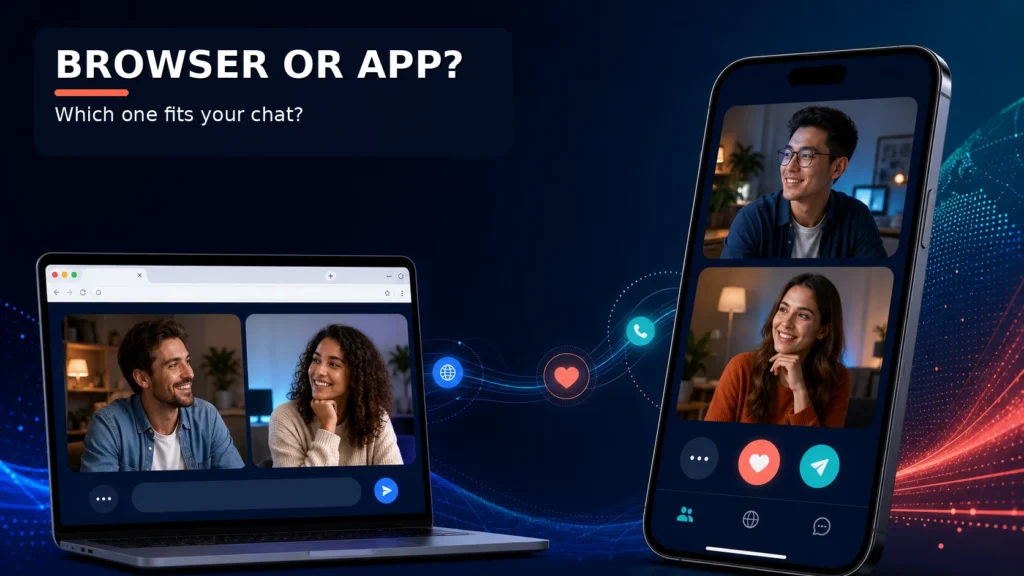
There are two easy ways to join a modern stranger-chat platform: open it in a browser or install a dedicated app. Both can work well, but they create a different starting point.
A browser is quick. You open a link, check a few permissions and decide whether you want to continue. An app may feel more polished, especially when you use the same service often, but it also adds an installation step and another set of device permissions to review.
This guide is for adults using 18+ social discovery platforms. It does not claim that one format is always safer or faster. The right choice depends on your device, how often you use the service, how much control you want and whether you need mobile features beyond a live conversation.
Why the browser-versus-app choice matters before your first chat
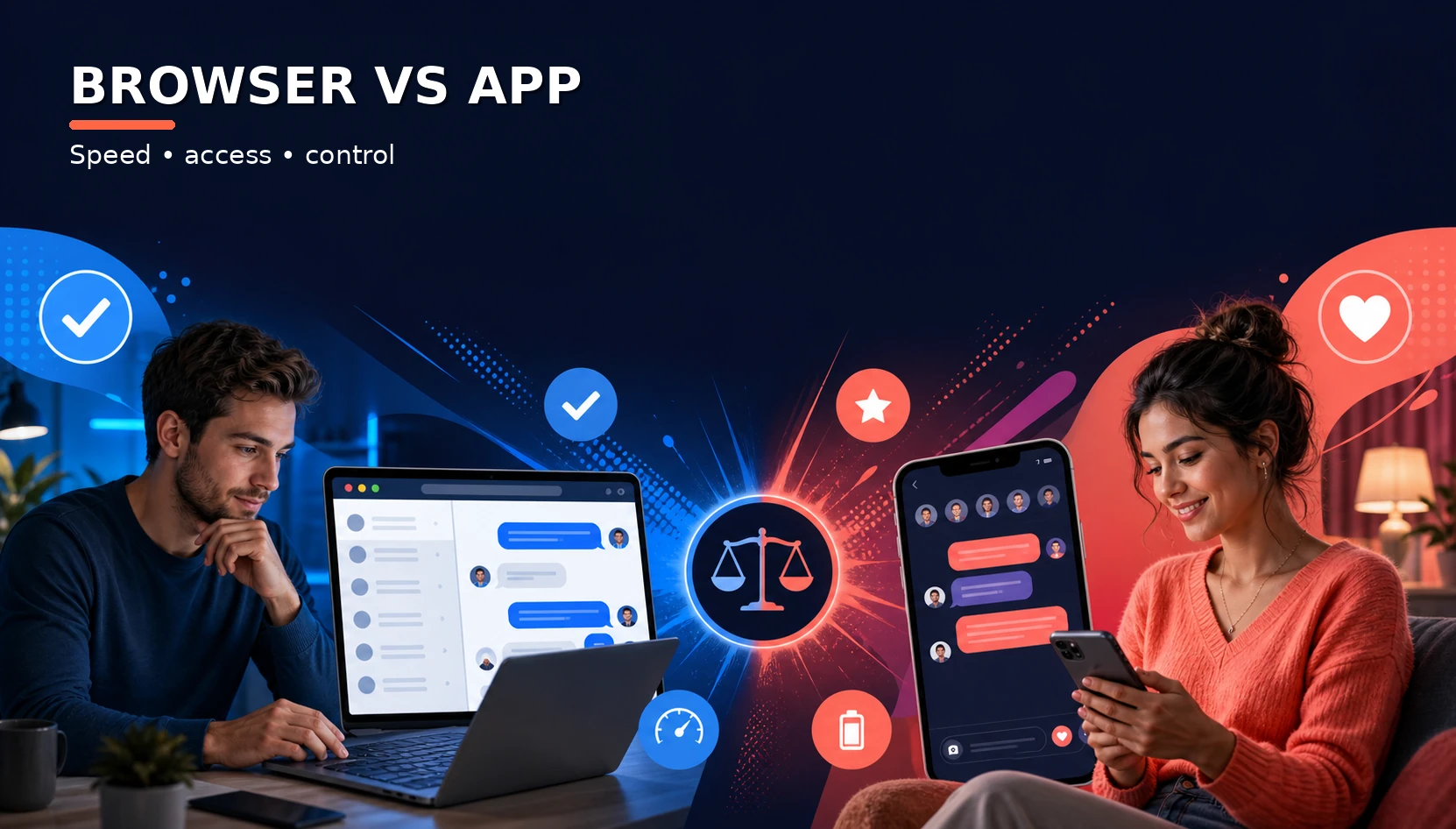
The format affects more than the icon you tap. It changes how you start a session, where you manage camera and microphone access, how updates arrive and how much space the service uses on your device.
It can also affect your expectations. A browser session feels temporary and low-commitment. An installed app feels more permanent, which can be useful if you return often but unnecessary if you only want to explore for a few minutes.
For a beginner, the most important question is not “Which one is better?” It is “Which one gives me the control I need right now?”
If you are still learning how a first session works, the existing beginner guide to starting a live conversation covers the basic setup before you compare formats.
When browser access is better for a quick stranger-chat session
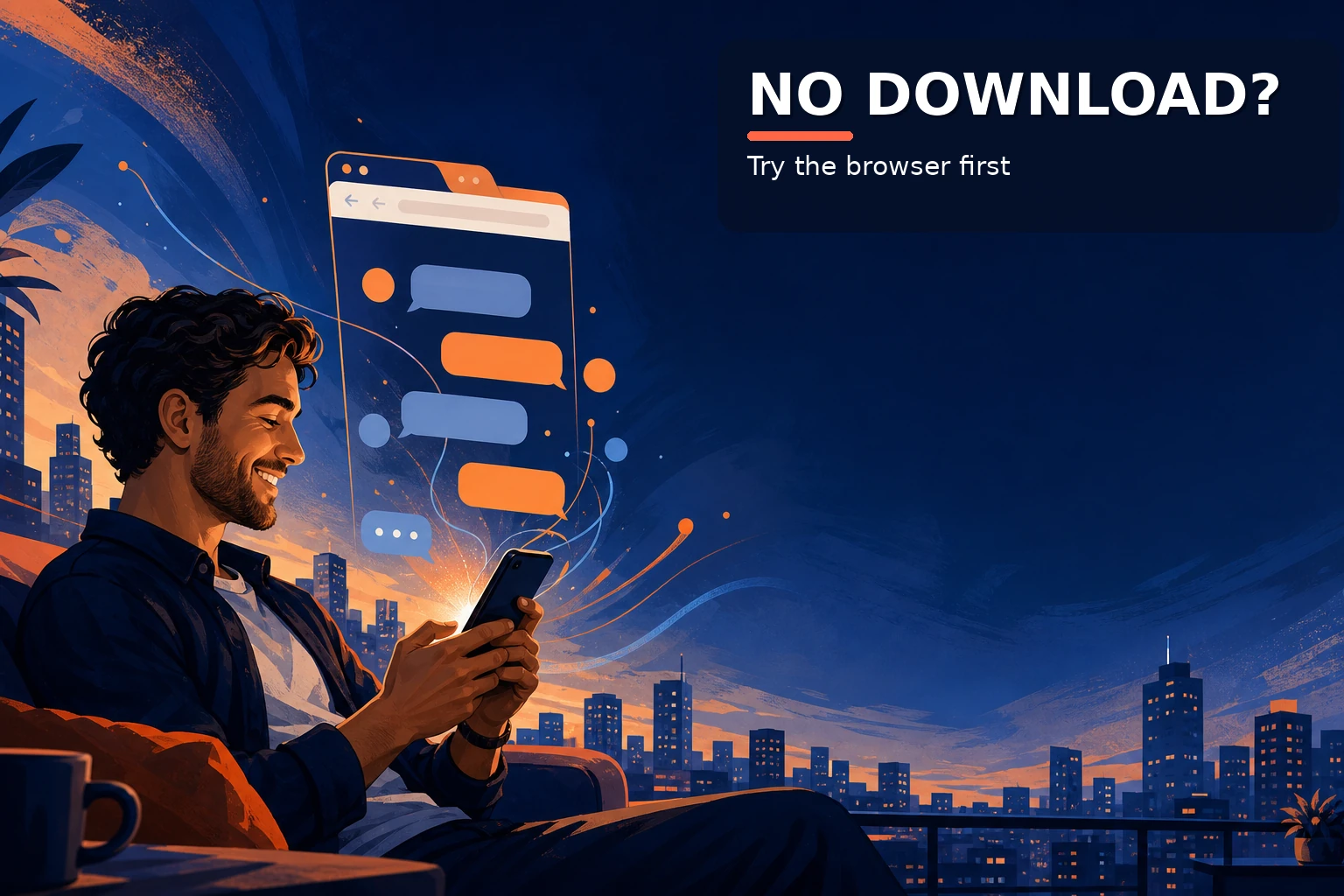
A browser is often the simplest choice when you want to try a service without committing to an installation. You can use a desktop, laptop, tablet or phone as long as the browser and device support the required features.
- Fast entry: open a link and start without visiting an app store.
- Less storage: the service does not take up a permanent app footprint.
- Easy switching: move between devices by opening the same site.
- Clear session boundary: close the tab when you are finished.
- Permission control: review camera and microphone access at the site level.
Browser access is especially convenient for a one-off conversation, a quick international exchange or a session from a computer where you do not want to install software.
It is not automatically private. A browser still receives the permissions you grant, and a website can still collect information according to its own policies. The advantage is convenience and a familiar place to review site permissions.
When a dedicated app can make mobile conversations easier
An app may be useful when you return to the same service frequently. A dedicated icon can reduce friction, and the interface may be designed around the phone’s screen rather than a general-purpose browser window.
Apps can also integrate more deeply with the operating system. Depending on the service and device, that may mean smoother notifications, easier access to the front camera or better handling of a session when you switch between screens.
Those benefits come with trade-offs. You must install the app, keep it updated, review its permissions and decide whether you want it to send notifications. An app that you no longer use should be removed rather than left with old permissions.
The question is not whether apps are good or bad. It is whether the extra convenience is worth the extra commitment for the way you actually use stranger chat.
What camera and microphone permissions change on each format
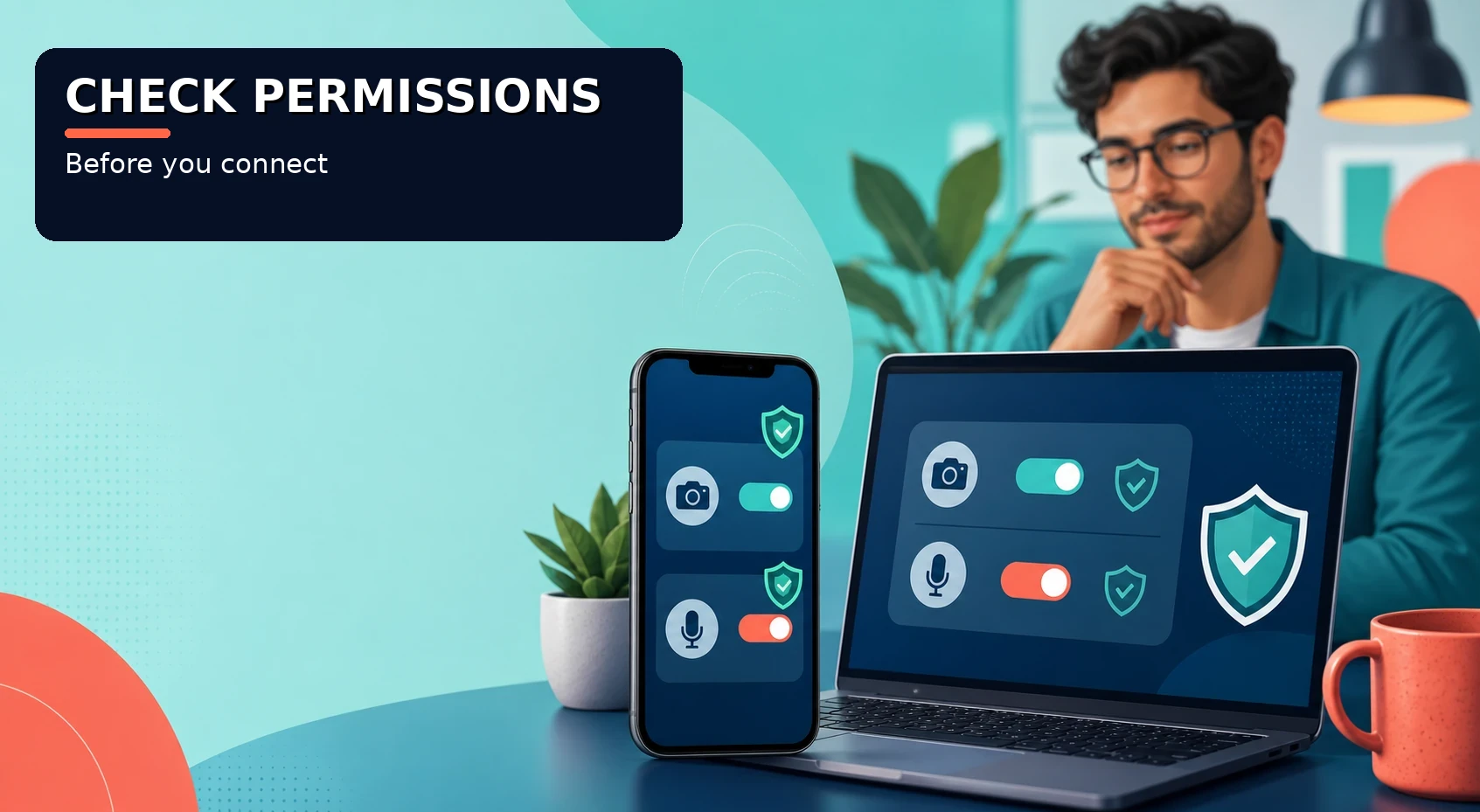
Both formats need permission before they can use a camera or microphone. The important difference is where you manage that permission.
In a browser, access is normally tied to a website and browser profile. You can often choose to allow access for the current visit, allow it for future visits or block it. Google’s official Chrome camera and microphone guide explains how to review allowed and blocked sites and change the default settings.
In an app, access is usually controlled in the phone’s operating-system settings. That can be convenient when you know where to look, but it is easy to forget which apps still have access. Review permissions after installing, after a major update and whenever you stop using a service.
Never approve camera or microphone access just because a screen is asking for it. Check that you are on the correct site or app and that the feature you want actually requires the permission.
How browser and app privacy controls differ in practice
Privacy is a combination of settings, platform policy and your own behaviour. A browser may give you fast per-site controls, while an app may offer more account settings inside one interface. Neither option removes the need to read the service’s privacy information.
Think about the information each format can expose:
- camera and microphone access,
- notifications that may appear on a lock screen,
- device and browser identifiers,
- profile details and account history,
- links that open another app or reveal a social account.
Firefox’s official support documentation explains how users can review, allow or block camera and microphone permissions for individual sites. The Mozilla permission guide is useful even if you normally use a different browser because the underlying principle is the same: permissions should be deliberate and reversible. For broader data and identity habits, readers can continue to the complete privacy guide for random-chat platforms.
For a deeper review of privacy habits during live conversations, continue to the site’s screen-sharing safety guide. Sharing a screen is a separate decision from turning on a camera.
Browser vs app for stranger chat: a practical comparison
| Decision point | Browser | Dedicated app | Best fit |
|---|---|---|---|
| Starting quickly | Open a link and review permissions. | Install, open and sign in or continue. | Browser for low-commitment sessions. |
| Storage | Uses browser storage and cache. | Uses device storage. | Browser when space is limited. |
| Permission control | Usually managed per site and browser. | Managed in app and system settings. | Whichever settings you check regularly. |
| Notifications | Optional browser notifications. | Often built into the app experience. | App if reminders are genuinely useful. |
| Device flexibility | Easy to move between supported devices. | Usually tied to installed devices. | Browser for occasional multi-device use. |
| Updates | Website changes arrive without an app-store update. | Updates may require a store download. | Browser for fewer manual steps. |
| Long sessions | Can work well with a stable connection. | May feel more integrated on a phone. | Test both on your own device. |
There is no universal winner. A browser is usually the better first test. An app becomes more attractive when you already know you will return and the extra controls genuinely improve your routine.
What to check before using a phone for stranger chat
Mobile sessions are convenient, but phones reveal more than a laptop in some situations. Your notifications, lock-screen previews, contacts, battery level and surrounding environment all deserve a quick review.
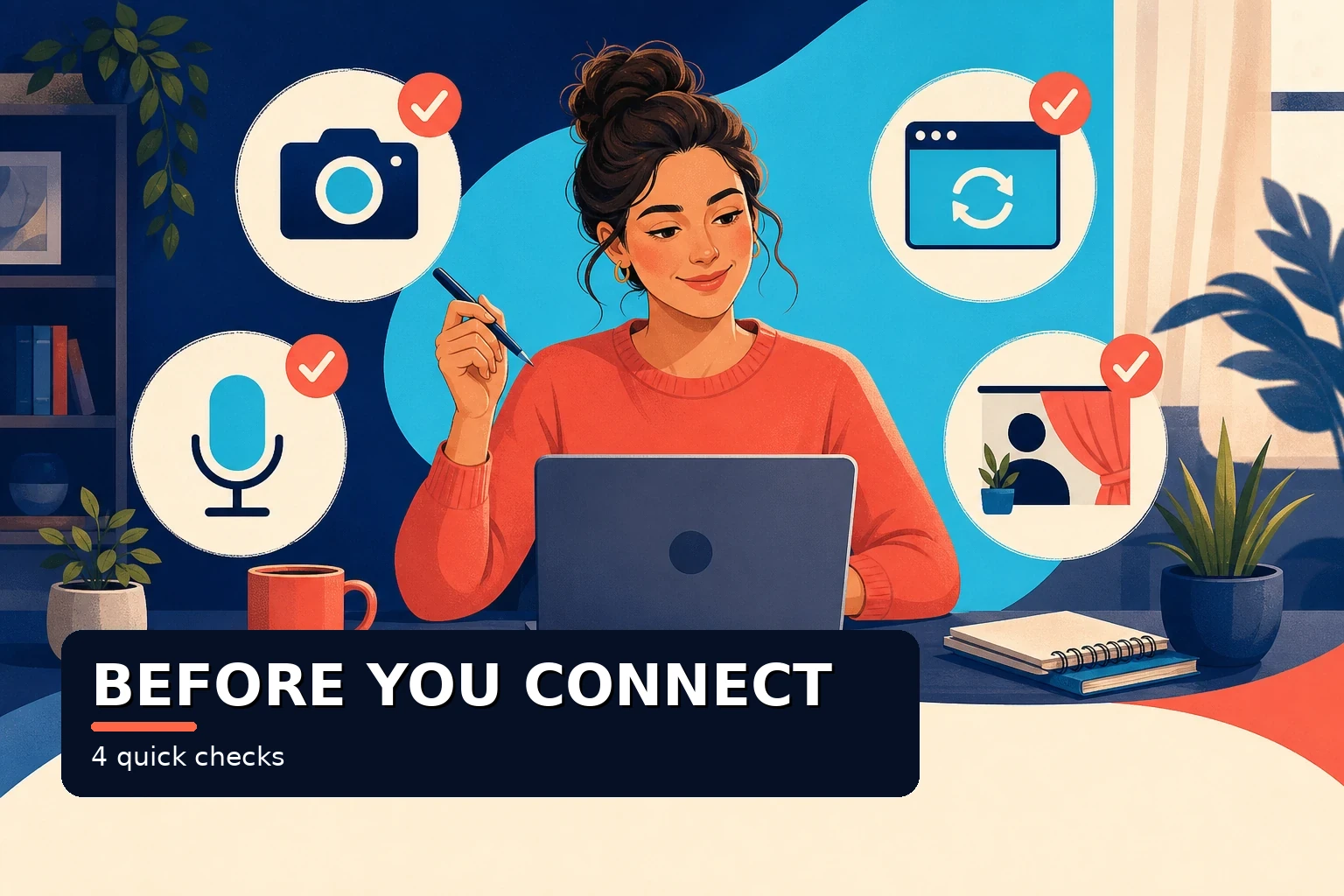
- Turn on Do Not Disturb or hide message previews.
- Check the front-camera angle and remove private details from the background.
- Use a stable Wi-Fi or mobile connection before starting.
- Confirm that the correct camera and microphone are selected.
- Keep the device charged, especially for longer sessions.
- Close links or apps that you do not want to open accidentally.
- Review permissions after the session if you do not plan to return soon.
If the phone browser behaves oddly, do not immediately assume that an app will solve every problem. First refresh the page, check permissions, update the browser and test the connection again.
Common mistakes when choosing between browser and app
- Installing an app before checking whether the browser version already works.
- Allowing every permission during setup without reading what it controls.
- Leaving notifications visible on a shared or unlocked phone.
- Assuming an app is safer simply because it came from an app store.
- Using an outdated browser and blaming the platform for connection problems.
- Sharing a screen from a phone or laptop without closing private apps first.
- Keeping an unused app installed with camera, microphone or notification access.
- Choosing a format based on other people’s devices instead of your own routine.
The simplest way to avoid these mistakes is to test the browser first, note what you actually need and install an app only when it offers a clear benefit.
Which format is better for low-commitment social discovery?
For most first-time users, the browser is the easier starting point. It reduces the number of steps between curiosity and a real conversation. It also lets you decide later whether the service deserves a permanent place on your phone.
For regular users, the app may become more practical if it offers better mobile navigation, reliable notifications or features that you genuinely use. Convenience matters, but it should not replace a quick review of privacy and permissions.
Whichever format you choose, keep the session intentional. Use a neutral background, protect personal information and leave when a conversation feels wrong. The existing guide to evaluating random-chat platforms can help you assess the service itself, not just the device you use.
FAQ: browser or app for stranger chat
Is browser stranger chat safer than using an app?
Not automatically. A browser may make site-level permissions easy to review, while an app may offer different system controls. Safety depends on the service, the device, the permissions you grant and the information you share.
Do I need to install an app for a mobile session?
Not always. If the platform supports a modern mobile browser, you may be able to use the core experience without installation. Check the site’s requirements and your browser permissions first.
Why does the camera work in an app but not in the browser?
The browser or operating system may be blocking access, or the wrong camera may be selected. Review site permissions, check system settings, update the browser and reload the page.
Should I allow notifications from a stranger-chat app?
Only if you want them. Notifications can reveal activity on a lock screen, so keep previews hidden if privacy matters more than reminders.
Which option is better for occasional use?
A browser is usually the lower-commitment choice because it requires no installation. An app may make sense after you know that you will use the service regularly.